
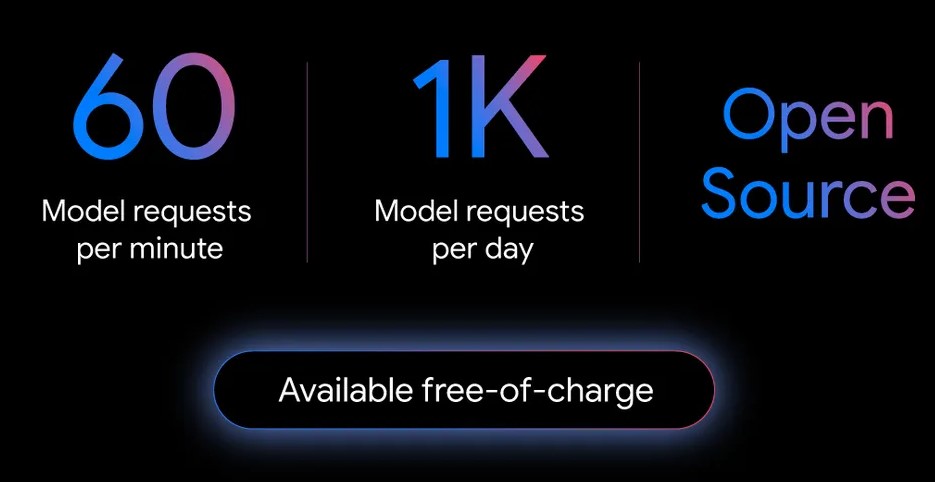
Google just dropped a new AI coding tool that might change everything. It’s called Gemini CLI, an open source AI agent that lets developers and power users chat, code, debug, and even generate media without leaving the terminal. It is built on the powerful Gemini 2.5 Pro model. Unlike other tools, this one is free to use—up to 1,000 requests each day. That’s a big deal in a market where many platforms charge hundreds of dollars each month. If you want to boost your coding game, learn how to maximize this tool’s potential.
What is Google Gemini CLI? An Overview
Definition and Purpose
Gemini CLI is Google’s answer to Claude Code, a super popular AI coding assistant. It runs directly in your terminal, so no extra software is needed. Based on Gemini 2.5 Pro, it’s one of the smartest AI models out there. The main goal? Make coding faster, easier, and more affordable for developers.
Gemini CLI is a tool made by Google that lets you talk to Gemini AI directly from your computer’s command line. It helps you with coding, writing, search, and more — using AI.
Core Features and Capabilities
- Acts like a senior developer guiding you through coding
- Builds project plans and generates code based on prompts
- Works in a command-driven way, so you tell it what to do step-by-step
- No built-in “planning mode”—you give detailed instructions for best results
- Can handle complex projects by breaking them into phases
Key Specs
| Feature | Details |
|---|---|
| Model | Gemini 2.5 Pro (1 M-token context) |
| Rate limit | 60 requests / min, 1,000 / day (individual) |
| License | Apache 2.0 (fully open source)github.com |
| Install | <code>npm install -g @google/gemini-cli</code> or <code>npx</code> |
| Extensibility | MCP, JSON tool calls, custom plug-in system |
How Gemini CLI Works: Setup, Interaction, and Functionality
Installation and Initial Setup
Getting started is simple:
- Use a command to install Gemini CLI. [Link below for exact command]
- Open your terminal (or Cursor if you prefer a GUI).
- Type
Geminito launch the tool. - For security, store your API key in an environment file—don’t put it directly in the code.
Pro tip: While you need an OpenAI API key, be sure to keep it safe and hidden when deploying apps later.
User Interaction and Workflow
Since Gemini CLI lacks a dedicated planning mode, your best move is to give it a detailed description of what you want. For example, “Build an AI habit tracker with Next.js and PostgreSQL.” It then creates a plan, which you review and tweak if needed. Once satisfied, you tell it to “build” each phase, one step at a time.
Key Features in Action
- Sets up the entire project structure automatically
- Builds boilerplate code for your frontend and backend
- Connects components seamlessly
- Progresses through phases with commands like “continue”
- Lets you test and adjust along the way
A good example: creating a habit tracking app. You start with a plan, then ask Gemini to generate the code for each part. It even handles database setup and API calls.
Comparing Gemini CLI to Competitors: Claude Code and Others
Performance and Speed
In my experience, Gemini CLI feels faster and more reliable than Claude Code. It calls tools correctly and builds projects quicker. Plus, response times are noticeably better, which saves you hours.
Pricing Model and Accessibility
Here’s the best part — it’s free for up to 1,000 requests per day. That means you can develop serious apps without worrying about high costs. Claude Code’s tiers can run $17 to $200 a month, and requests are limited. Google’s approach could make their tool your main coding buddy for free.
User Experience and Flexibility
Gemini CLI is like having a senior developer guiding you. It trusts you to guide it, so you don’t need to handhold every step. However, it’s not as simple as click-and-go; it demands good prompts and planning. Still, that’s what gives it power.
Practical Tips for Maximizing Gemini CLI’s Potential
Effective Planning Strategies
- Start by writing a detailed project description
- Ask Gemini to create a plan for each phase
- Review and customize the plan before coding
- Use prompts like “build API routes” or “generate UI components”
Step-by-step Development Approach
- Break your project into phases: plan, build, test, refine
- Use the “continue” command to automate moving forward
- Check each step thoroughly before proceeding
- Test the code often and adjust prompts as needed
Security and Deployment Best Practices
- Save your API keys in environment variables, never hardcoded
- When ready for launch, hide keys in secure files (.env)
- Regularly test your app for bugs and security flaws
Real-World Example: Building an AI Habit Tracker with Gemini CLI
Project Setup and Planning
I prompted Gemini to create an AI habit tracker. I described the features I wanted—daily habits, progress visualizations, and user input. The tool quickly pulled up a detailed plan, including tech choices like Next.js and PostgreSQL.
Building the Application in Phases
- It set up the project with boilerplate code automatically
- Created front-end pages and backend API routes
- Connected the database to store habits and streaks
- Integrated AI prompts for habit suggestions
Final Result and Testing
The app lets users create habits, check them off, and see progress charts. Testing was quick, thanks to the automated setup. If I wanted to add new features, I’d just prompt Gemini to generate the code. It handled most of the heavy lifting.
Future Implications and Strategy for Developers
Market Disruption and Competitive Edge
Google’s free tier could shake up the AI coding scene. Many developers might switch from paid tools to Gemini CLI, saving hundreds of dollars. As Google improves Gemini, it will get even better at understanding and building apps.
Recommendations for Developers
- Experiment now with small projects using Gemini CLI
- Use detailed prompts and detailed plans
- Track updates from Google for new features
- Save your favorite prompts for future use
Ongoing Comparisons and Deep Dives
I plan to compare Gemini CLI with Claude Code fully soon. Expect a video breaking down which one is faster, smarter, and better for different tasks. This will help you decide which tool fits your workflow best.
Conclusion
Google Gemini CLI might be the most exciting AI coding tool released so far. With a free request limit of 1,000 daily calls, it’s accessible and powerful. Use careful planning, detailed prompts, and phased building to maximize its potential. If you’re serious about coding faster, smarter, and cheaper, Gemini CLI deserves your attention. Keep experimenting, and you might find it becoming your main AI assistant for building apps.
Frequently Asked Questions (FAQs)
Q1. Is Gemini CLI really free?
Yes. Individuals get 60 requests per minute and 1,000 per day at no cost. Future pricing for heavier use hasn’t been announced.theverge.com
Q2. What operating systems are supported?
It’s Node-based, so macOS, Linux, and Windows (via WSL or native Node) all work.
Q3. How does it differ from Gemini Code Assist?
Code Assist lives inside IDEs like VS Code; Gemini CLI stays in the terminal and is open source.
Q4. Can I self-host the model?
Not today; Gemini CLI calls Google’s hosted Gemini 2.5 Pro. However, you can proxy through MCP endpoints.
Q5. Does it store my code on Google servers?
Only the snippets you send in prompts. No background uploads occur; review the GitHub source for proof.
Q6. Is there enterprise SSO support?
Planned. For now, OAuth with personal Google accounts is required.
Q7. Can I extend it with Python plug-ins?
Native plug-ins are Node packages, but you can shell-out to Python scripts or call a local HTTP server.
Enjoy Worthview?
Add Worthview as a Preferred Source on Google to see more of our stories in Search.

Sethuram Kishore is the founder and editor of Worthview, an online publication established in 2008. With over 18 years of experience in SEO, digital marketing, and online publishing, he writes about AI, technology, business, and digital trends. He is also the founder of MoneyHulk, a personal finance and business publication.







2 thoughts on “Google Gemini CLI: The Most Insane Open Source AI Agent”
Comments are closed.