
Claude has a built-in Import Memory feature under Settings → Capabilities → Memory → Start Import. Paste a memory export from your old AI platform — ChatGPT, Gemini, or Grok — and Claude imports your preferences, context, and work history in minutes. The feature is free, works across all Claude plans, and lets you import from multiple platforms without losing existing memory.
Something shifted in early 2026. ChatGPT — the AI tool that introduced millions of Indians to the idea of talking to a machine — started losing its edge. First came the ads. Then came the usage caps for free users. Then came news of Anthropic taking a principled stand against the U.S. government, even at the cost of lost business. That story resonated — especially with users who had grown tired of feeling like a product.
The result? Claude shot to the top of Apple’s App Store in the United States, overtaking ChatGPT for the first time. Daily sign-ups hit record highs. A social movement called #QuitGPT spread across Reddit, with posts collecting tens of thousands of upvotes. And ChatGPT uninstalls reportedly spiked nearly 300% in a single day.
If you are one of the many people now considering the switch, this guide is for you. And here is the good news: you do not have to start from zero. Claude has a built-in tool that lets you bring your memory and context from ChatGPT, Gemini, or Grok directly into Claude — in under 10 minutes.
TL;DR — Key Takeaways
- Claude has a built-in Import Memory feature that lets you carry over your preferences and context from ChatGPT, Gemini, or Grok in under 10 minutes
- Works by generating a memory export prompt in your old AI, then pasting the output into Claude’s Settings → Capabilities → Memory → Start Import
- Available on both free and paid Claude.ai plans as of March 2026
- Memory import is separate from full chat history — full history requires a ZIP export from ChatGPT
- You can import from multiple platforms — ChatGPT, Gemini, and Grok imports stack without overwriting each other
- After import, verify what transferred by asking Claude: “What did you learn about me?”
- Beyond memory, set up Claude Projects and Connectors to get the most out of the switch
What You Will Not Lose When You Switch
The biggest fear people have about switching AI tools is losing context. If you have spent months telling ChatGPT about your job, your writing style, your projects, and your preferences — starting over feels exhausting.
Claude’s Import Memory feature solves exactly this problem. Here is what carries over:
- Your tone and format preferences (e.g., ‘always be concise’, ‘use bullet points’)
- Your professional context — job title, industry, tools you use
- Ongoing project details and recurring topics
- Communication style and language preferences
- Personal context that shapes how the AI helps you
|
Who Can Use Claude’s Memory Import Feature
Before you begin, here is what you need to know about availability:
- Available on Claude Pro, Max, Team, and Enterprise plans
- Also available for free users on Claude.ai (rolled out in early March 2026)
- Works on Claude web, Claude Desktop, and Claude Mobile apps
- You can import from ChatGPT, Gemini, and Grok in separate sessions — they stack, they do not overwrite each other
Step-by-Step: How to Switch from ChatGPT to Claude
Step 1: Export Your Memory from ChatGPT
Log into ChatGPT and start a new chat. Paste the following prompt exactly as written:
|
ChatGPT will generate a summary of everything it knows about you. Copy the entire output.
Pro tip: Before copying, review the output. ChatGPT’s memory can sometimes include outdated information — old job titles, past projects, or preferences that have changed. Delete anything stale before you proceed.
Step 2: Open Claude’s Memory Import Tool
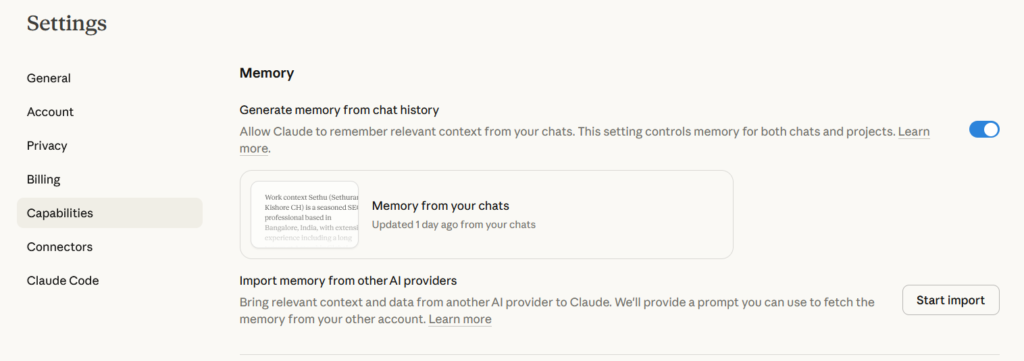
There are two ways to find it:
- Go to Claude.ai and click your profile icon in the top right, then Settings > Capabilities > Memory > Start Import
- From Claude’s home screen, look for the ‘Import memory to Claude’ card and click Get Started
Both paths open the same interface — an export prompt shown at the top for reference, and a text box below it.
Step 3: Paste and Import
Paste the output you copied from ChatGPT into the text box and click Import. Claude will process the information and add it to your memory profile.
Important: Claude’s memory is optimised for work-relevant context. Personal details that are not connected to how you use Claude professionally may not always persist. If something important does not carry over, you can add it manually through Settings > Capabilities > View and edit your memory.
Step 4: Verify What Transferred
Open a new conversation and type: ‘I updated my memory. What did you learn about me?’
Claude will summarise exactly what it now knows. This is your quality check. If anything important is missing, add it manually. Within 24 hours (often much faster), this context will be active across all your conversations.
Also read,
Switching from Gemini or Grok? Same Process
The same import tool works for Gemini and Grok users too. The prompt is identical — just paste it into your current AI platform, copy the output, and import it into Claude.
One thing to note about Gemini: its memory model tends to store less explicit user data and more conversational context. The export may be shorter than what ChatGPT generates. If you have used Gemini extensively for specific projects or deep research, consider asking Gemini for a separate project summary before running the main export.
For Grok users: the depth of memory depends on your subscription tier. Free Grok users may get less context in the export.
Want to Bring Your Full Chat History Too?
If you want to go further than just memory — and actually import your entire conversation history — Claude supports that as well.
Here is how to export your full chat history from ChatGPT:
- Click your username in the bottom-left corner of ChatGPT
- Go to Settings > Data Controls
- Click Export next to Export Data, then Confirm Export
- A download link will be sent to your registered email
- Download the ZIP file and upload it through Claude’s import tool
Note: As of March 2026, full chat history import is a newer feature. It is worth checking the import tool settings in Claude.ai for the most current options.
Three More Things to Set Up After You Switch
1. Claude Projects
Projects are Claude’s most powerful feature for structured, recurring work. Create a project for each major area of your life — content creation, coding, research, work tasks. Each project has its own system prompt, uploaded files, and memory scope. Think of it as having a specialist assistant for every workflow you run.
2. Custom Instructions via Memory Edits
Go to Settings > Capabilities > Memory > View and edit.
Here you can add specific instructions that Claude will always follow — your preferred tone, formatting style, recurring context about your work. This is the equivalent of ChatGPT’s custom instructions, but more granular.
3. Connectors
Claude now supports connectors to external tools like Google Drive, Gmail, and more. Once connected, Claude can pull context from your actual documents and emails — not just what you have told it. This is especially powerful for professionals who work across multiple platforms.
Bottom Line
| In summary: Switching from ChatGPT (or any AI) to Claude in 2026 is no longer a painful process. Claude’s built-in Import Memory feature lets you carry over your preferences, context, and professional history in minutes. The AI race has entered a new phase — one where your data is portable and you are not locked in. If you have been on the fence about trying Claude, now is the easiest moment to make the move. |
Frequently Asked Questions
Is Claude’s memory import free?
Yes. As of March 2026, the memory import feature is available on the free tier of Claude.ai, not just paid plans.
Will my ChatGPT conversations appear in Claude after import?
Memory import transfers context and preferences, not the full conversation thread. For full chat history, you need to export a ZIP file from ChatGPT and use the chat history import option separately.
How long does it take for imported memory to be active?
Claude updates memory within 24 hours of import. In practice, it is often active within a few minutes. Test it by asking ‘What did you learn about me?’ in a new conversation.
Can I import from multiple AI platforms?
Yes. Each import session adds to your existing memory without overwriting it. You can layer in context from ChatGPT, Gemini, and Grok in separate sessions.
What if Claude is missing something important after import?
Go to Settings > Capabilities > View and edit your memory, and add the missing detail manually. Claude’s memory is optimised for work-relevant context, so personal details unrelated to your workflow may sometimes be skipped.





Hi there! I’m Sethu, your go-to guy for all things tech, travel, internet, movies, and business tips. I love sharing insights and stories that make life more interesting. Let’s explore the world together, one article at a time!