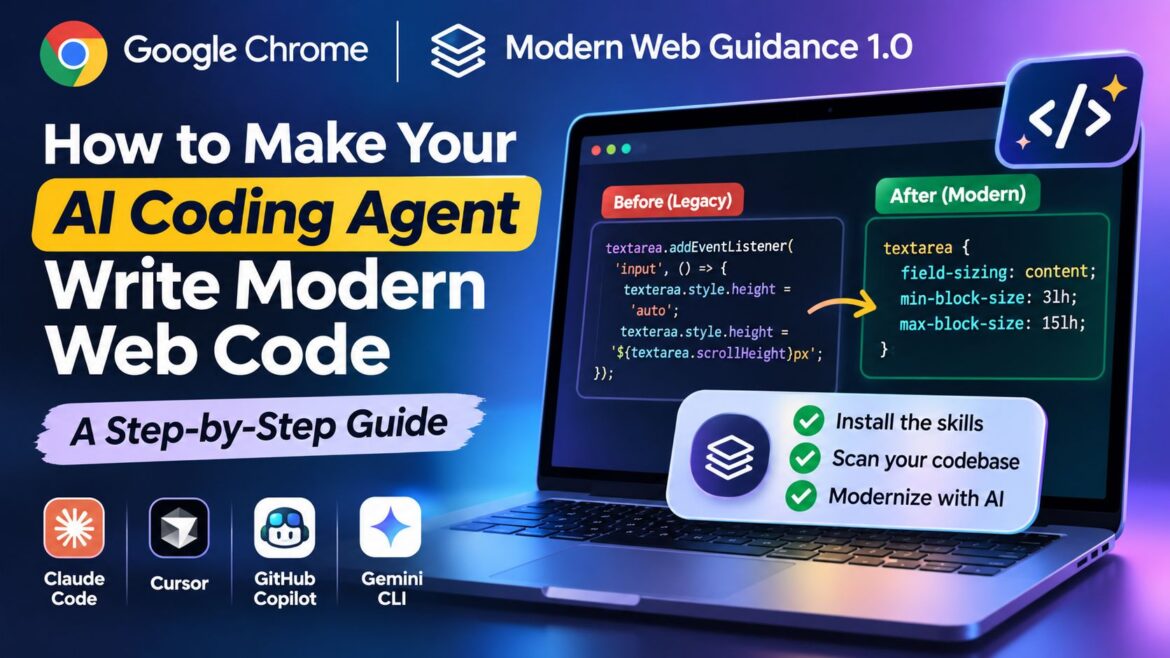
Google Chrome’s Modern Web Guidance 1.0 is an open-source toolkit that helps AI coding agents write better, more modern HTML, CSS and JavaScript. Developed as a cross-browser initiative with contributions from Chrome, Firefox, Edge and the wider web community, it gives coding agents access to expert-reviewed web development practices and browser compatibility guidance.
Released on November 10, 2026, version 1.0 introduces a modernization workflow that can scan existing codebases, identify outdated patterns and help developers plan improvements.
In this guide, we’ll walk through the complete process in five steps, using the official Chrome documentation from installation and code scanning to reviewing suggested fixes and measuring performance improvements. Whether you use Claude Code, Cursor, GitHub Copilot or another compatible coding agent, this guide will help you get started.
-
Install the skills
npx modern-web-guidance@latest install -
Scan your existing codebase
npx modern-web-guidance@latest legacy-scan . - Review the findings Ask your AI coding agent to verify the issues and propose a modernization plan.
- Apply approved fixes Review the plan, approve the changes and let your agent implement them.
- Measure the results Recheck Core Web Vitals to evaluate performance improvements.
Why your AI agent writes old code
The project’s README gives the reason plainly: coding agents default to older patterns because LLM training data contains vast amounts of legacy code. Ask an agent for a modal, a lazy-loaded image or a responsive card and you often get a JavaScript workaround for something browsers now do natively.
Modern Web Guidance fixes this by feeding the agent current web platform guidance and browser compatibility data as skills it retrieves while coding. The Chrome team says it is now a cross-browser effort, with Firefox and Edge supporting and contributing alongside Chrome. Guidance is tied to Baseline, the shared standard for features that work across major browsers, so the agent picks modern features with sensible support.
Step 1: Install the skills
You need Node.js. From your project folder, run the recommended installer built by the Chrome team:
npx modern-web-guidance@latest installAlready on an earlier version? Update with npx modern-web-guidance@latest update. The modernization scan needs version 1.0 or newer.
Prefer your agent’s own plugin route? The docs list these:
| Agent | Command |
|---|---|
| Claude Code | claude plugin install modern-web-guidance@claude-plugins-official |
| Gemini CLI | gemini extensions install https://github.com/GoogleChrome/modern-web-guidance --auto-update |
| GitHub CLI | gh skill install GoogleChrome/modern-web-guidance |
| Any skills-compatible agent | npx skills add GoogleChrome/modern-web-guidance |
Building a Chrome extension? Run npx modern-web-guidance@latest install --choose to pick skills in an interactive wizard.
Tools such as Google AI Studio are also making it easier to build complete applications using AI-powered development workflows. Read our guide to Google’s full-stack vibe coding experience in AI Studio
Step 2: Scan your existing code
Point legacy-scan at the folder you want audited. Use . for the whole project, or a path such as src/components/forms for one area:
npx modern-web-guidance@latest legacy-scan .The scan pre-screens files for relevant substrings, then runs AST, CSS and HTML parsers only on candidate files. That keeps it fast and quiet compared with a traditional linter.
One limit matters: per the docs, it only covers the subset of guides (about 20% of roughly 200) where legacy code can be detected deterministically without false positives. A clean report does not mean your code is fully modern. Coverage is being expanded over time.
Example: Replacing JavaScript with Modern CSS
Let’s look at a practical example of how Modern Web Guidance can help identify opportunities to replace older coding patterns with modern browser capabilities.
Imagine you have a website with a textarea that automatically increases its height as users type. Traditionally, developers used JavaScript to calculate the content height and adjust the element dynamically.
Before: The traditional JavaScript approach
const textarea = document.querySelector('textarea');

textarea.addEventListener('input', () => {
  textarea.style.height = 'auto';
  textarea.style.height = `${textarea.scrollHeight}px`;
});
This works, but it requires JavaScript to handle something that modern browsers can now manage through CSS.
After: The modern CSS approach
textarea {
  field-sizing: content;
  min-block-size: 3lh;
  max-block-size: 15lh;
}
The CSS field-sizing: content property allows the textarea to grow and shrink based on its content. The min-block-size and max-block-size properties control its minimum and maximum height.
What’s improved?
| Traditional approach | Modern approach |
|---|---|
| Requires JavaScript event listeners | Uses native CSS |
| Manually calculates textarea height | Browser manages content sizing |
| Additional JavaScript logic | Simpler implementation |
| More code to maintain | Less code to maintain |
This is just one example of how modern web platform features can simplify frontend development.
AI-assisted development is also evolving beyond code generation. Explore how AI agents are changing the way websites are built and accessed through WebMCP
Important: Browser support should always be checked before replacing existing implementations. Use Baseline compatibility information to determine whether a feature is suitable for your target audience and provide fallbacks where necessary. Also, remember that the legacy scanner only detects a subset of patterns; it may not flag every opportunity for modernization.
Step 3: Verify findings and agree a plan
Don’t let the agent edit straight away. The official workflow has the agent run the scan, verify the findings, report them, and only then propose a modernization plan. Use the prompt from the docs:
Modernize this repository using Modern Web Guidance. Scan our frontend files for legacy patterns, verify the findings, and propose a modernization plan before making any code edits.Read the plan before you approve it. Reject anything that touches checkout, login, ad slots or analytics code until you have tested it separately.
Step 4: Apply the fixes and use it for new builds
Once the plan looks right, approve it in small batches: one folder or one pattern at a time. Commit after each batch so any regression is easy to find and revert.
The skills also work on new code. With them installed, your agent consults the guidance while it builds, so new components start modern instead of needing a later cleanup. Prompt it as you normally would, for example: “Build a responsive pricing section for this page.”
Step 5: Measure Core Web Vitals before and after
Modernizing your code is useful, but how do you know whether the changes actually improved your website?
The best way to find out is to measure your website’s performance before and after implementing the recommended fixes.
Google uses three Core Web Vitals metrics to evaluate user experience:
| Metric | What it measures | Good score |
|---|---|---|
| Largest Contentful Paint (LCP) | How quickly the main content loads | 2.5 seconds or less |
| Interaction to Next Paint (INP) | How quickly the page responds to user interactions | 200 ms or less |
| Cumulative Layout Shift (CLS) | How stable the page layout is while loading | 0.1 or less |
These thresholds help you understand whether visitors are experiencing a fast, responsive and visually stable website.
How to measure performance
You can use the following Google tools to measure your website’s performance:
- PageSpeed Insights: Test individual URLs and review their Core Web Vitals results for mobile and desktop.
- Google Search Console: Monitor Core Web Vitals across groups of URLs on your website.
- Chrome DevTools: Use the Performance panel to investigate loading delays, interaction bottlenecks and layout shifts.
The Chrome documentation also recommends combining Modern Web Guidance with Chrome DevTools for AI agents. This allows your coding agent to use actual browser profiling data alongside modern web development guidance.
For example, you can ask your agent:
Analyze my website's Largest Contentful Paint (LCP)
using Chrome DevTools.

Identify the main performance bottlenecks,
consult Modern Web Guidance for relevant improvements,
and propose a plan before modifying any code.
Record your before-and-after results
Before allowing your AI coding agent to make changes, record the existing Core Web Vitals scores. Once the changes are implemented and deployed, run the same tests again using the same URLs and device categories.
Use this table to document the results:
| Page | LCP Before | LCP After | INP Before | INP After | CLS Before | CLS After |
|---|---|---|---|---|---|---|
| Homepage | — | — | — | — | — | — |
| Top article | — | — | — | — | — | — |
| Category page | — | — | — | — | — | — |
Replace the dashes with your actual measurements.
Important: Modern Web Guidance does not guarantee better Core Web Vitals scores. Its purpose is to help coding agents identify and implement modern web development practices. Actual performance improvements depend on the changes made, your website architecture, hosting environment and other factors.
Also, distinguish between lab measurements from tools such as Lighthouse and real-user field data. Search Console’s Core Web Vitals report uses real-user data and may take time to reflect improvements after deployment.
The goal is not simply to replace old code with new code. It is to make meaningful improvements that visitors can actually experience.
Limits to know about
- Partial coverage. The scan flags only patterns it can detect with high confidence, so it will miss some legacy code.
- No CI integration yet. The docs say automated CI/CD pipeline support is in development, so for now you run the scan manually or through your agent.
- It guides, it doesn’t guarantee. The skills steer the agent, but you still need to review diffs and test in the browsers your audience uses.
- Platforms like WordPress. The scan works on code you control, such as a custom theme or plugin. It cannot modernize code inside third-party plugins you don’t maintain.
Frequently Asked Questions About Modern Web Guidance
1. What is Google Modern Web Guidance?
Modern Web Guidance is an open-source project from the Chrome team that provides modern web development knowledge to AI coding agents. It helps agents follow current HTML, CSS and JavaScript practices, understand browser compatibility and identify opportunities to modernize existing codebases.
2. Is Modern Web Guidance free to use?
Yes. Modern Web Guidance is an open-source project released under the Apache 2.0 licence. Developers can install its CLI and use its guidance with supported AI coding agents without paying a separate licence fee. However, your AI coding tool may have its own subscription or usage charges.
3. Which AI coding agents support Modern Web Guidance?
Modern Web Guidance supports multiple AI coding environments, including Claude Code, Gemini CLI, GitHub Copilot CLI and other agents that support the skills format. Cursor and other compatible tools can also use the guidance through the documented installation methods.
Check the official GitHub repository for the latest supported agents and installation instructions.
4. How do I install Modern Web Guidance in Claude Code?
You can install Modern Web Guidance in Claude Code using its plugin marketplace:
/plugin marketplace add GoogleChrome/modern-web-guidanceThen install the plugin:
/plugin install modern-web-guidance@googlechromeAlternatively, use the CLI installer:
npx modern-web-guidance@latest installFollow the official installation documentation for the latest setup instructions.
5. Can Modern Web Guidance improve an existing website?
Yes. Version 1.0 introduces a modernization workflow that can scan existing codebases, identify supported legacy patterns and help AI coding agents propose improvements.
You can run the following command from your project directory:
npx modern-web-guidance@latest legacy-scan .Your coding agent can then verify the findings and prepare a modernization plan. You should review and approve the proposed changes before implementation.
6. Does Modern Web Guidance work with WordPress websites?
Yes, it can help developers modernize custom WordPress themes, plugins and frontend code that they control.
For example, developers can use it to review custom HTML, CSS and JavaScript and identify opportunities to adopt modern browser capabilities.
However, it cannot automatically modernize third-party plugin code that you do not maintain. Always test changes on a staging website before deploying them to a live WordPress site.
7. Does the legacy scanner detect every outdated coding practice?
No. The scanner currently covers only a subset of the available guidance where legacy patterns can be detected with sufficient confidence.
It uses techniques such as file pre-screening and AST, CSS and HTML parsing to identify supported patterns.
A clean scan does not necessarily mean your entire codebase follows modern web development practices. Developers should also use code reviews, testing and the full guidance available to their coding agent.
8. Does Modern Web Guidance automatically improve Core Web Vitals?
No. Modern Web Guidance helps AI coding agents follow modern development practices and identify opportunities for code modernization. It does not guarantee improvements in Largest Contentful Paint (LCP), Interaction to Next Paint (INP) or Cumulative Layout Shift (CLS).
Performance depends on several factors, including JavaScript execution, image optimization, hosting, server response times and frontend architecture.
Use Google PageSpeed Insights, Search Console and Chrome DevTools to measure actual improvements.
9. Can I use Modern Web Guidance for a completely new website?
Yes. You can use it when building new websites and frontend components, not just when modernizing existing applications.
Once installed, your compatible AI coding agent can consult relevant guidance while generating code. This can help it select modern CSS properties, JavaScript APIs and browser features from the beginning.
Enjoy Worthview?
Add Worthview as a Preferred Source on Google to see more of our stories in Search.

Worthview Editorial Team is the shared byline for content created collaboratively by Worthview’s editors and contributors. Since 2008, we’ve published thousands of articles across technology, AI, finance, health, home, travel, and lifestyle. Our editorial process emphasizes original research, reputable sources, regular content updates, and clear attribution. Articles covering higher-trust topics, including health and finance, may also undergo review by qualified subject-matter experts.